A Capitol Recipe

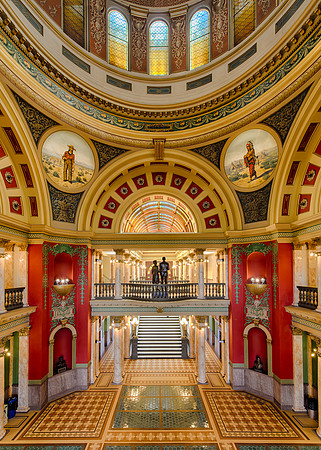
Over the past year, I've visited and photographed 11 capitol buildings. When sharing these pictures through photography forums, I always get questions about them--how to minimize distortion with a wide angle lens, how to keep the lines straight, how to retain details in the stained glass windows, etc. So, I'm posting this blog entry to address those questions. Let's take one of the photographs (the interior of the Montana State Capitol) and walk through the process in detail from the beginning (at capture) to the end (the finished photograph). Of course, this same process can be used for churches and other interior spaces:
AT CAPTURE:
For most interiors, I capture multiple exposures to create a high dynamic range (HDR) image. By varying the exposures, it's possible to retain details in both the highlights and shadows. For the highest image quality (especially given that I'm shooting multiple frames), I always secure the camera to a tripod. I use the Mirror Lock Up feature of the Nikon D800 along with a cable release to minimize the risk of any camera movement. The Virtual Horizon feature makes it convenient to align the lens properly both vertically and horizontally. Aligning the lens is critical to keeping the lines straight, especially with ultra-wide angle lenses.
Sometimes, the subject will move up or down too much within the frame as a result of the lens being aligned with the horizon. Since I don't own a tilt-shift lens, I rely on the cropping capabilities of the Nikon D800's sensor to help deal with this issue.
I shoot raw files and set the camera to its base ISO (e.g., 100 in the case of the D800). If time permits (and there aren't a lot of people entering the frame), I will also activate the camera's long exposure noise reduction feature.
MULTIPLE FRAMES:
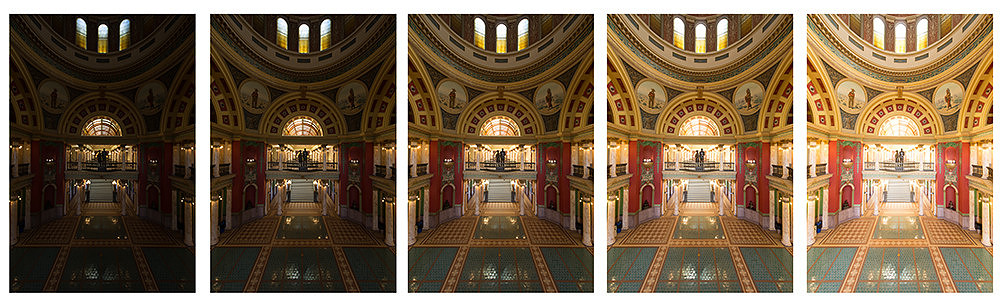
Typically, I take five exposures of an interior scene with the camera in Aperture Priority--varying the shutter speeds for each exposure by one stop. If the scene presents a more extreme dynamic range, I will increase the number of frames to nine. Many times, this approach also requires dialing in some negative exposure compensation. For the image in the sequence with the shortest exposure, I check the histogram to ensure that details are retained in the highlights (i.e., windows, lamps). If the highlights are still blown out (i.e., blinking on the camera's LCD panel), I start over and dial in more negative exposure compensation until the "blinkies" go away.
Here's the sequence of five exposures from the Montana State Capitol rotunda. Shutter speeds range from 1/4th of a second (far left) to 4 seconds (far right). Note that negative exposure compensation was dialed in until some color and detail started to appear in the upper stained glass windows in the frame on the far left:

CREATING THE HDR IMAGE:
To create the HDR image, I first bring the raw files in to Lightroom. In Lightroom, I apply two adjustments: white balance and lens correction. For white balance, I usually use the white balance eyedropper tool and look for something that should be neutral gray in the frame. For lens correction, I apply the default setting for lens correction by enabling profile corrections and removing chromatic aberration. From there, I export the images as tiff files to HDR Efex Pro 2.
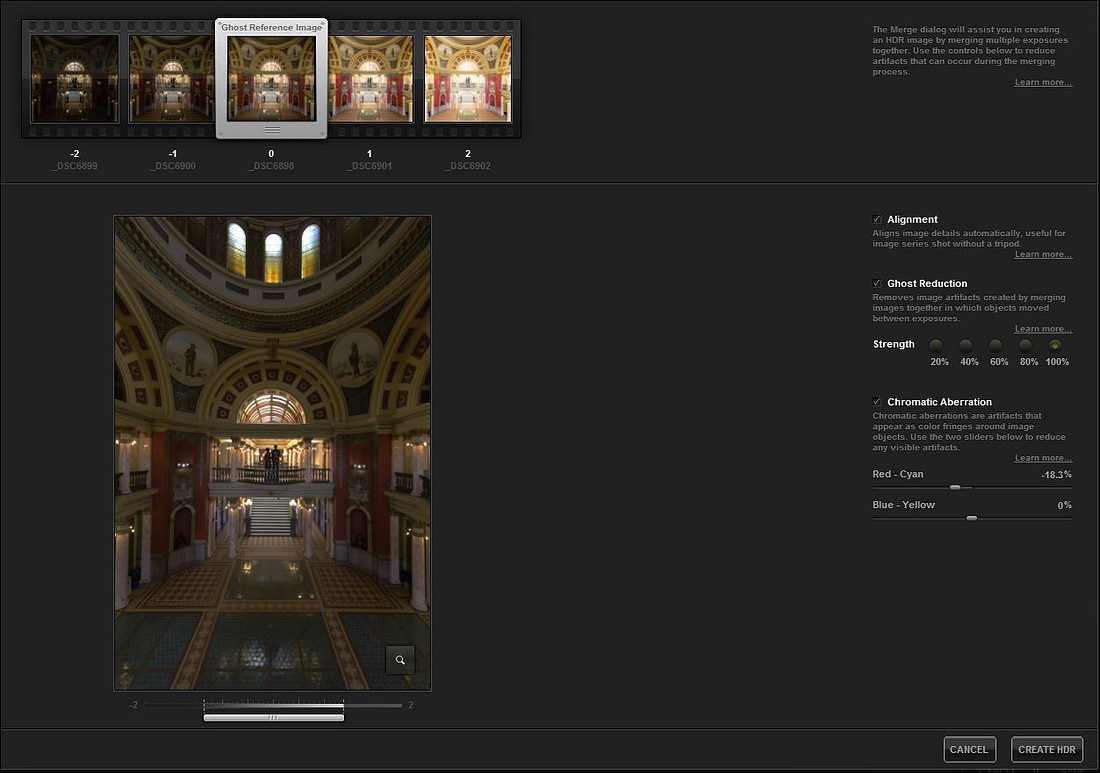 From here, I check the Alignment, Ghost Reduction and Chromatic Aberration boxes and the click on "Create HDR". Then, the following screen appears:
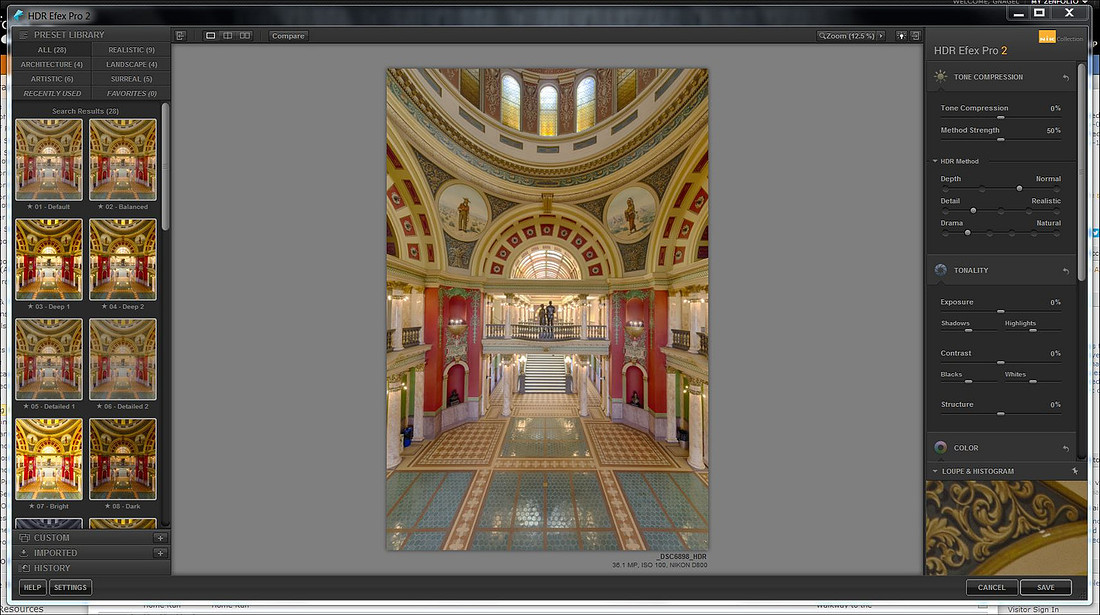 Typically, the only thing I do here is to move the "Tone Compression" slider to the right as much as necessary to reveal enough detail in the stained glass windows. Most times, I don't move the slider at all. Sometimes, it's helpful to drop a "Control Point" on a small area within the frame (e.g., a window) and then adjust a slider or two (e.g., exposure) to reveal even more detail in the highlights. Then, I click on Save. I now have one blended TIFF file to work with.
BASIC ADJUSTMENTS:
I bring this blended TIFF file back into Lightroom and begin processing the photograph just as I would any other non-HDR picture. Typically, I take another look at the white balance, adjust contrast to taste, perhaps add some clarity and sharpen the image. I don't crop the image at this point since the lines might require further adjustments in Photoshop--and I need all the frame space I can get before playing with the lines!
FINISHING TOUCHES:
Once I've finished my Lightroom adjustments, I bring the file into Photoshop CS5. My first step in Photoshop is to clone out any unwanted sensor dust spots or unwanted people! Then, to ensure that the lines are straight, I use the Perspective Crop tool. For more information about using this tool, please refer to my earlier blog posting titled "Evolution of a Picture". Once the lines are straight, I crop the picture.
For nearly every photograph that I process of interiors, I apply at least four of the Nik Color Efex Pro 4 filters. These filters are applied as masks within Photoshop, so that I can apply the effect selectively to the appropriate areas within the frame and so that the opacity can be tweaked to apply just the right amount of effect to keep things looking realistic. Here are the four filters that apply most often:
- White Neutralizer- helps to ensure accurate colors
- Pro Contrast- almost always gives the photo that extra pop (and doesn't mess with the highlights and shadows that we've worked so hard to control)
- Brilliance & Warmth- the "Perceptual Saturation" can sometimes be very interesting, especially when applied selectively within Photoshop by using masks
- Detail Extractor- I always apply this one selectively by painting the effect into only portions of the frame. It works great on stained glass windows!
Once I've applied the Nik filters, I save the finished file. Voila!