
The Evolution of a Photograph

Last week, I visited the Oakbrook Shopping Center to capture some photographs of the tulips. While taking the pictures, I envisioned what the finished photograph would look like after processing. Here's how one of the images progressed from the camera's sensor to the final photograph:
I noticed this row of pink tulips planted on the center island of the road that enters the mall. I saw that the street would provide a clean backdrop for the tulips. I moved the camera into a higher position and then closer to the tulips to ensure that the pavement would cover the background. I didn't want the grass in the background to intersect with the line of tulips. One of the challenges was getting into position quickly enough to take a picture during a rare lull in the traffic! Here's the image straight out of the camera:
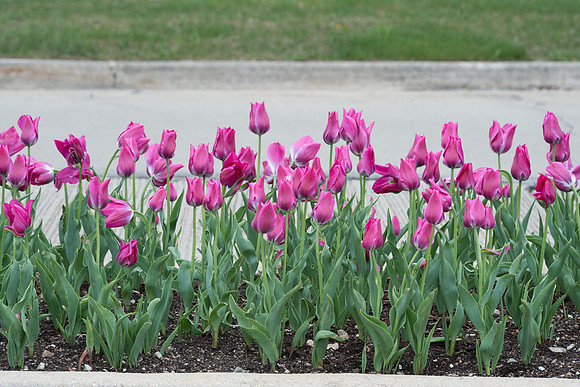 TulipsTulips at the Oakbrook Shopping Center at 100 Oakbrook Center in Oak Brook, Illinois on May 5, 2015
 After importing the file into Adobe's Lightroom 6, I made the following edits:
- Adjusted the white balance by pointing the WB eyedropper tool on the gray curb
- Reduced the exposure slightly (-0.12 stops)
- Reduced the highlights slightly
- Made a curve adjustment to create a black point within the frame
- Made lens corrections for chromatic aberration and for the lens profile
- Cropped the image
Then, I sent the image to Photoshop to make some additional edits:
- Selected the background (using the Select > Color Range tool)...and then painted the selection using a blue brush
- Applied a couple of Nik Color Efex filters (Foliage and Pro Contrast) to add some pop to the image
- Copied the layer and applied the Soft Light blending mode at a reduced opacity
- Cloned some areas around the edges for a cleaner border
After applying all of the above adjustments, here's how the image looks:
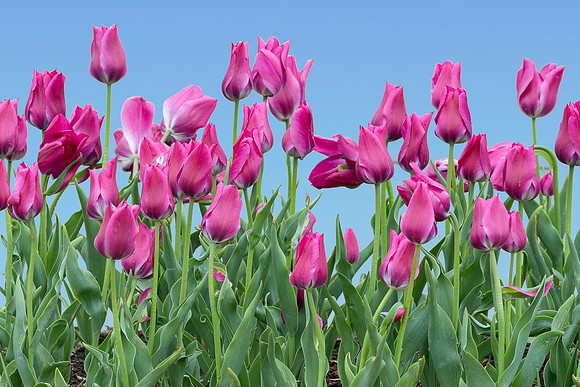 TulipsTulips at the Oakbrook Shopping Center at 100 Oakbrook Center in Oak Brook, Illinois on May 5, 2015
CLICK HERE for higher resolution image

Then, I created a second version (which I prefer) with some texture applied to the picture. Here are the steps that I used to create the final photograph:
- Opened the above image in Photoshop
- Opened one of my texture pictures in Photoshop (see below).
- Selected the entire texture picture (CTRL A in Windows)--then copied the entire picture as a new layer above the tulip picture
- Used the overlay blending mode for the textured layer and reduced its opacity to 35%
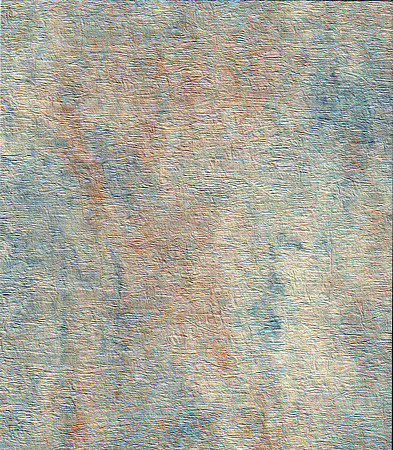 And, here's the final textured photograph!
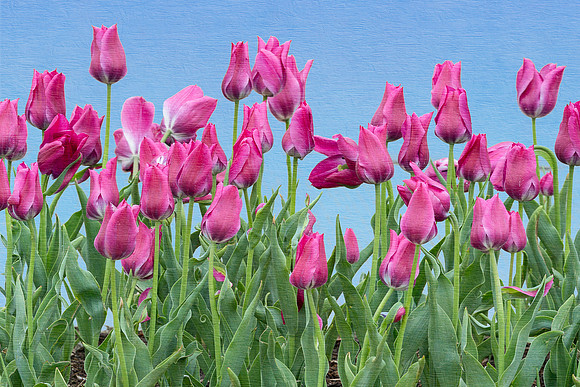 TulipsTulips at the Oakbrook Shopping Center at 100 Oakbrook Center in Oak Brook, Illinois on May 5, 2015
CLICK HERE for higher resolution image
